
How to Use Approval Rules
Coming Soon
Approval Rules allow you to automate payment workflows by defining exactly who can authorise a transaction based on its type and value.
Orbital evaluates every transaction against your active ruleset. A rule consists of 4 criteria:
- Transaction type: Choose whether the rule will apply to Treasury Solutions Payments, eCommerce Payouts, or Transfers to eCommerce (an internal transfer from a Treasury Solution account to an eCommerce account)
- Threshold: The monetary value at which the rule is triggered.
- Approvals Required: The number of unique authorisations required to release the funds.
- Active Approvers: The specific set of users authorised to approve or reject transactions governed by this rule.
Applying Approval Rules
All thresholds in the system follow a Greater Than format. A rule will only apply if the transaction amount is strictly more than the value entered in the threshold field.
If you want a rule to apply to every single transaction of a specific type, set the threshold to 0.
If multiple rules apply to a transaction, the rule with the largest threshold will apply.
If no rules apply to a transaction, that transaction will be auto-approved.
Which Users Can Use Approval Rules?
- Any user can view the Approval Rules, and be assigned as an Approver.
- Super Admins can create new Approval Rules, disable/enable Approval Rules, edit Approval Rules, and delete Approval Rules.
- Admins can edit Approval Rules.
Creating an Approval Rule
- On the top right of the page, click the dropdown menu.
- Select Transaction Approval.
- On the Transaction Approval page, toggle on the Approval Rules button at the top right.
- Select + New Rule.
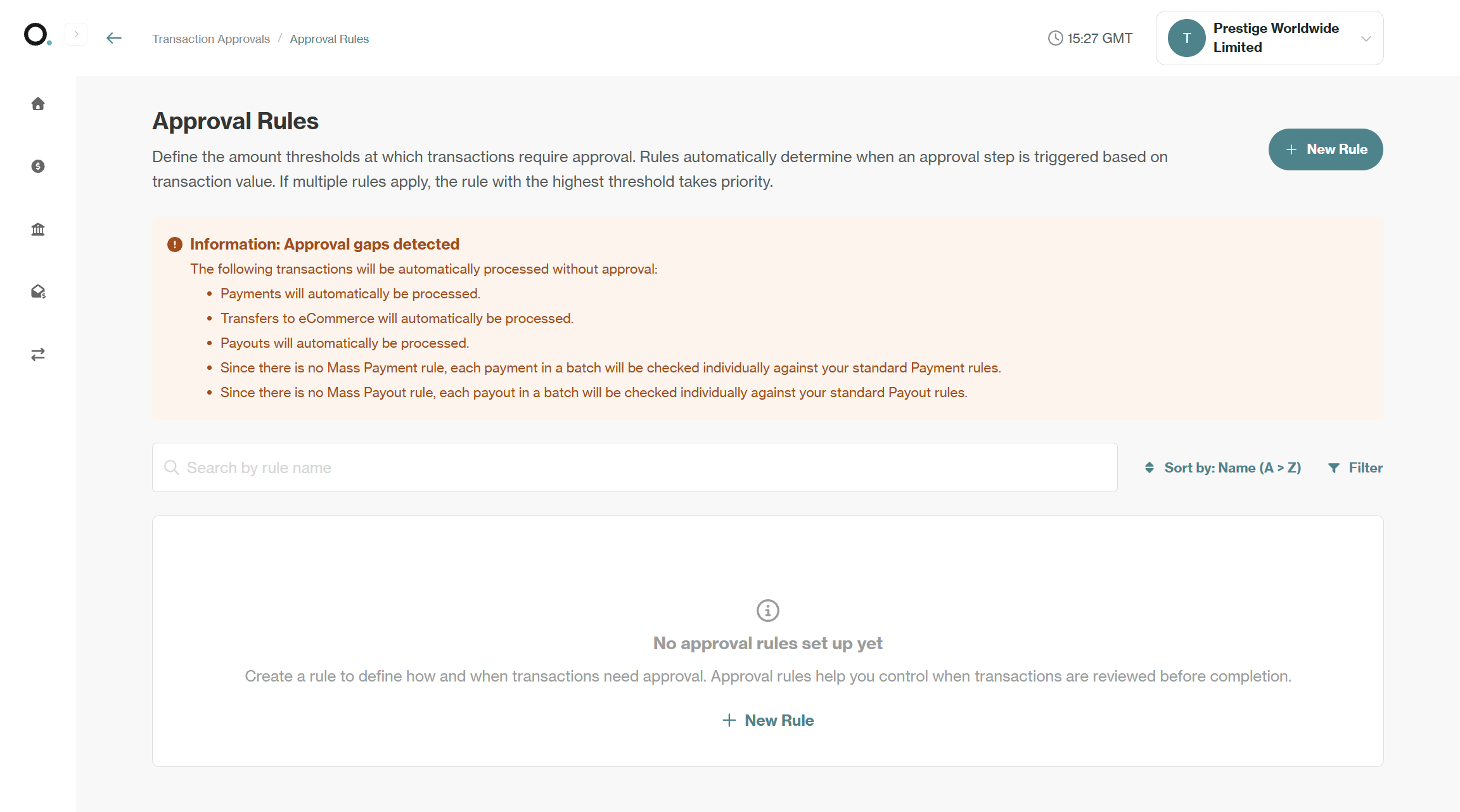
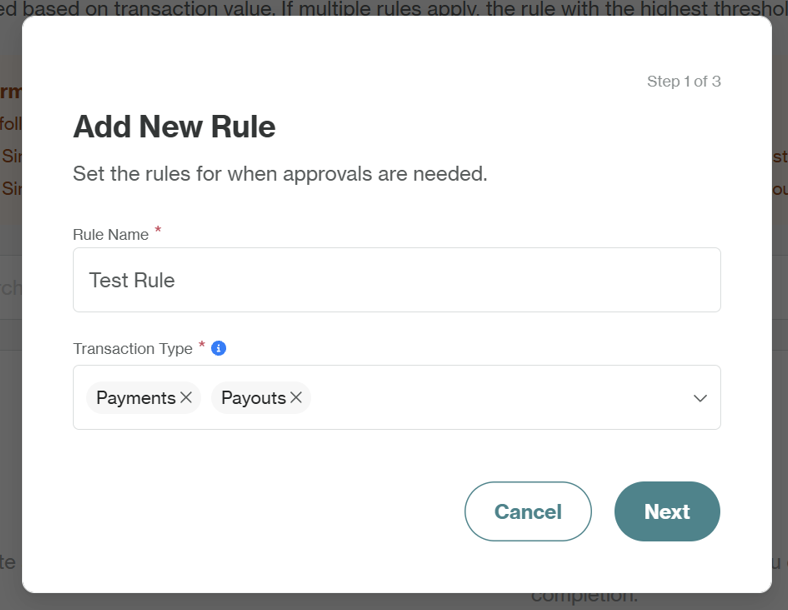
- Input a Rule Name and select the Transaction Type(s) this rule governs (Payments, Payouts, Transfers to eCommerce).
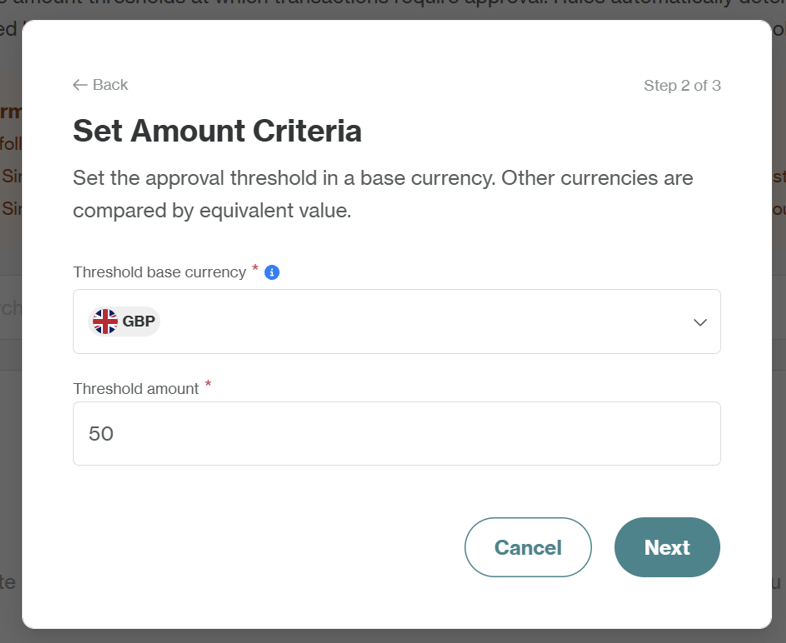
- Select your Threshold Base Currency (USD, EUR, or GBP) and input the Threshold Amount. Any payment submitted - regardless of its native currency -will be automatically converted to your base currency to see if it exceeds this threshold.
- Select the number of unique approvals needed. Choose the specific users authorized to approve these transactions. The system requires the number of selected users to be equal to or greater than the number of approvals required.
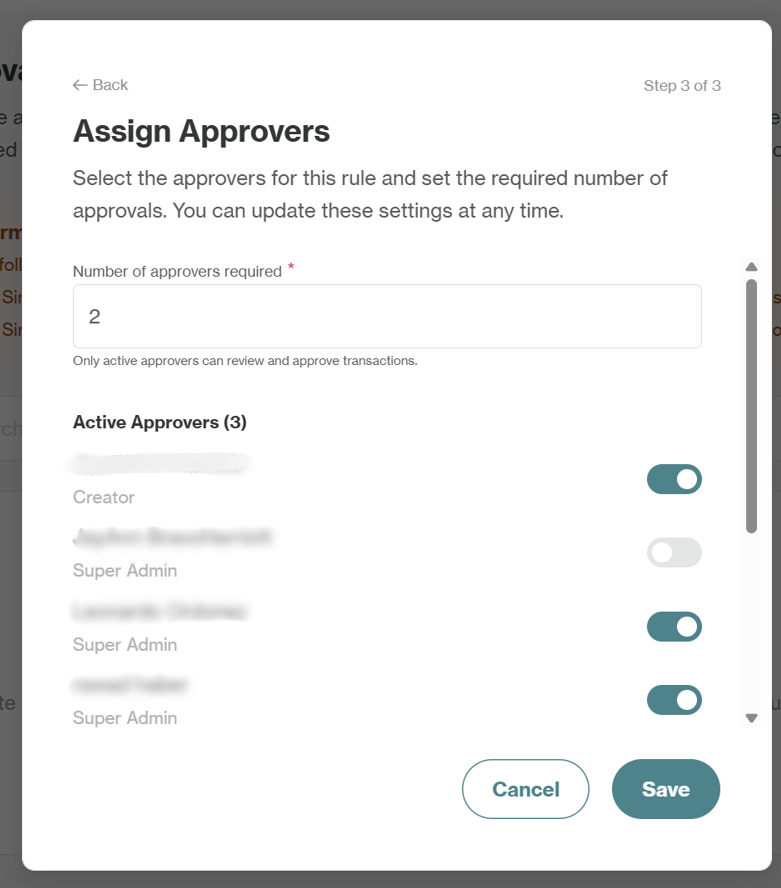
- Select Save. The rule is now active and will appear in your list. The warning banner will update immediately to show any remaining auto-approval gaps.
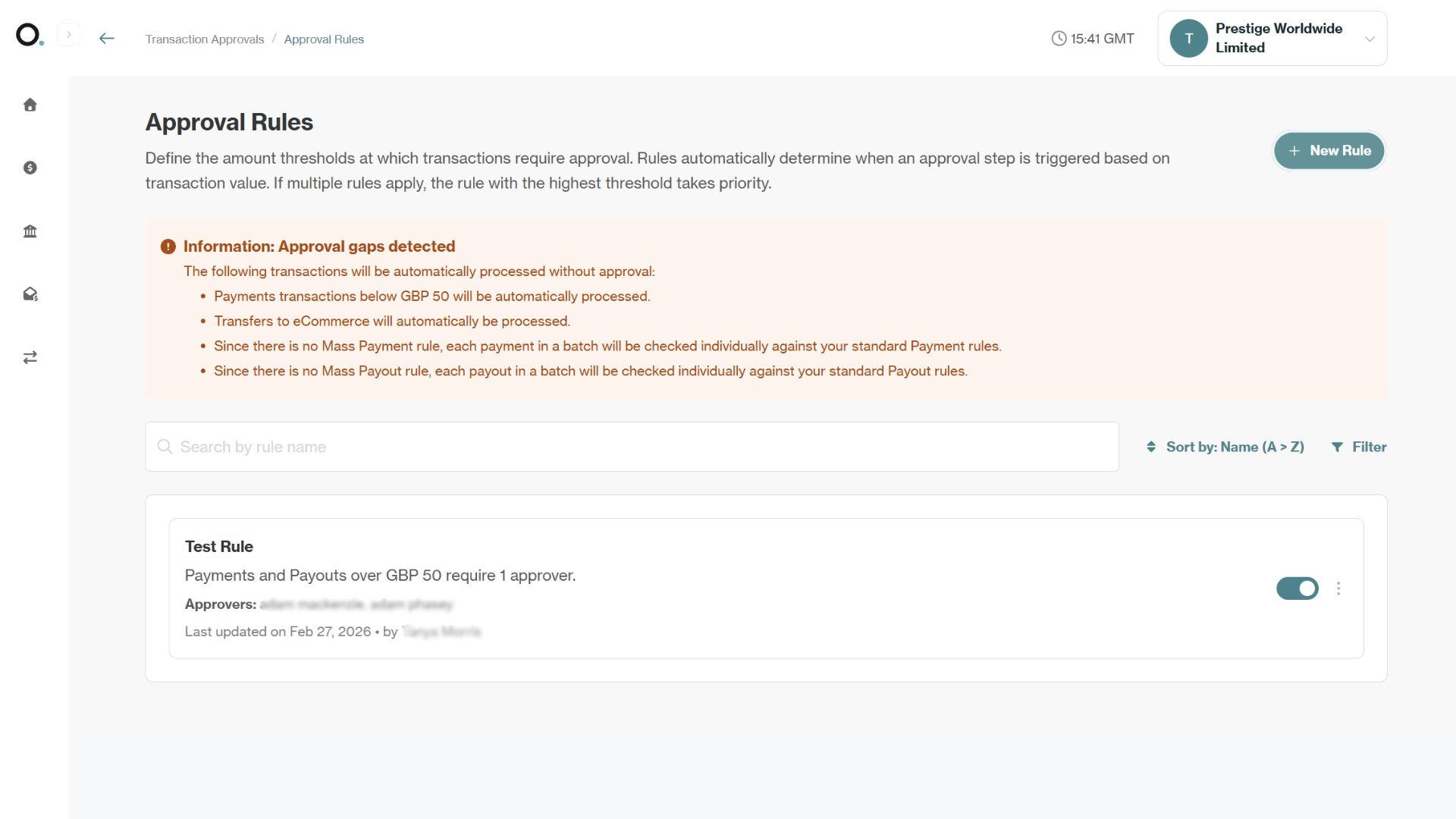
It is suggested to ensure that the number of approvals required is at least one less than the number of active approvers for a rule - since self-approval is prohibited, if an approver initiates a transaction and this rule is applied, there won't be enough users left to meet the requirement.
Editing, Disabling or Deleting Approval Rules
Use the dropdown menu to edit the rule or permanently delete it. Use the toggle to disable the rule - this will stop the rule being used for future transactions but it will remain in your list of rules and can be re-enabled at any time.

Note: Whenever you change a rule (edit, delete, disable) or create a new rule, this will never impact anything that is already in the approval queue. Any existing items in the approval queue will always have the relevant rule that existed at the time of their creation.
Updated 6 months ago